
Reminder: You do not have to click "Publish" after every change made. You can make multiple edits on different pages and hit "Publish" at the end to save everything!
Note: a video cannot be edited again until an update completes. Please be patient while it is processing.
- Go to the Video search page.
- Search for the video you'd like to update.
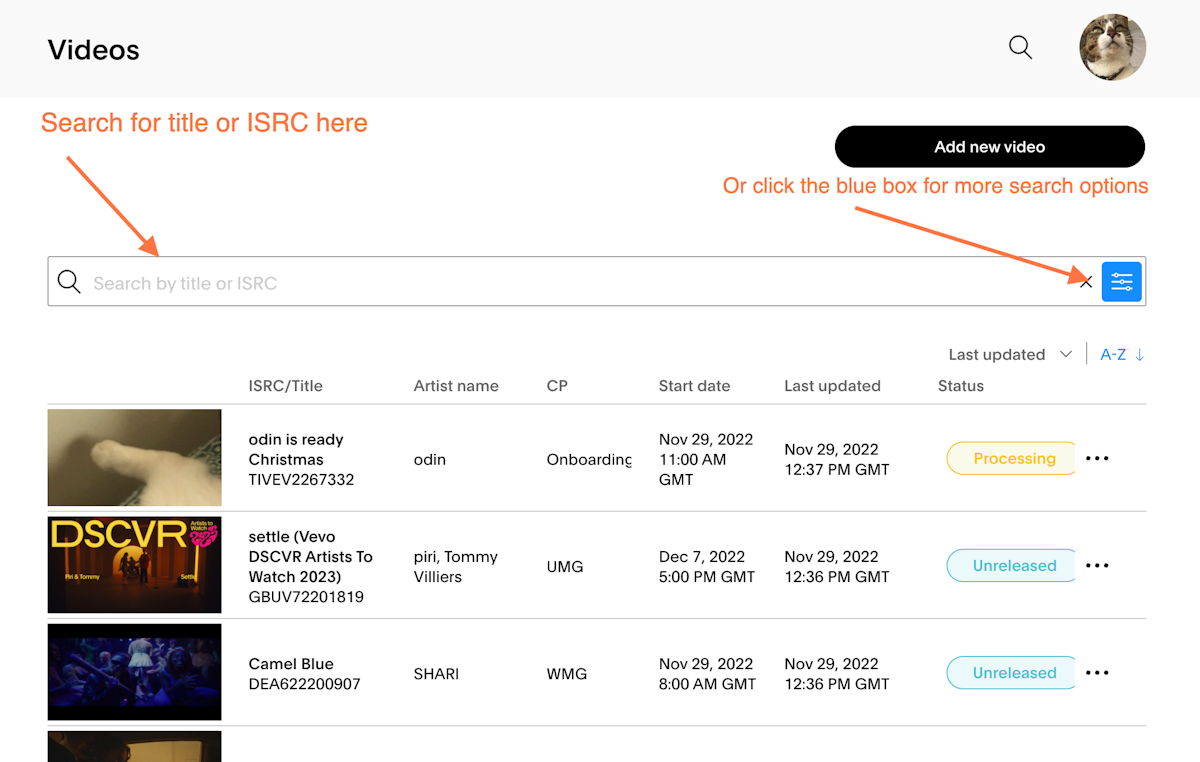
- Click into the video.
- In the "Language" field, input the desired language.
If you're unsure of what's accepted, you can click the drop-down menu and scroll through all the options. - Once you've selected the language, you can make any other changes needed to the video.
- Click on "Publish" after making your changes.
- You'll see a "Success!" banner as the video begins processing that change.